How to connect Claude to Illustrator in 3 steps (MCP, step by step)
With an open source extension and three steps, Claude connects to Adobe Illustrator and designs inside your document from the chat: it creates artboards, draws with real measurements and builds print-ready files. Here's the full setup, the test with a real packaging box, and what didn't go as I expected.
An MCP connector (the protocol that gives Claude instructions for operating an external tool) links Claude with Adobe Illustrator: Claude reads your document and runs design actions inside it, in the background. You connect it in three steps: go to the illustrator-mcp-server repository on GitHub, download the illustrator-mcp-server.mcpb file from Releases and drag it into Settings › Extensions in Claude Desktop, where it shows up as Design Bridge by IE3. You need Illustrator 2024 or later, Claude Desktop (or Claude Code) and Node.js 20 or later.
Why connect Claude to Illustrator
We've been using AI a lot to generate images and video. But in a designer's day-to-day, or for whoever is “the computer person” at a small company, many requests aren't an image: they're packaging with exact dimensions, a banner, a sign that's going to be printed. That changes the game, because units, the die line, bleed and an editable file all matter.
You see more and more posters made with ChatGPT printed at giant size, and it shows. The idea isn't to hand 100% of the design over to AI, but to boost what you do: let the AI work inside your professional tool, with a file you can still touch afterwards.
What this is, in one line
It's an MCP connector (the protocol that gives Claude instructions for operating an external tool) that links Claude with Illustrator: Claude reads your document and runs design actions inside it, in the background.
The connector is illustrator-mcp-server, an open source project under the MIT license. In Claude's extensions directory it appears as Design Bridge by IE3 and comes with more than 60 tools: creating documents, shapes, text and paths, managing layers and artboards, colors, crop marks, preflight and PDF export for print, among others.
What you need
- Adobe Illustrator 2024 or later. That's the verified version. From 2020 on it should work, but the connector warns you it hasn't been tested.
- Claude Desktop, Claude's desktop app. If you prefer Terminal, Claude Code works too.
- Node.js 20 or later. To check your version, open Terminal and type:
node -v
If it returns a version below 20, or an error, install Node.js from nodejs.org before moving on.
Step 1 · The repository
Go to the connector's repository on GitHub: github.com/ie3jp/illustrator-mcp-server. Before installing anything that will have access to your computer, look at who develops it, the stars, the downloads and the recent activity. If you have doubts, you can also ask Claude whether it looks like a safe install.
Step 2 · Download the .mcpb file
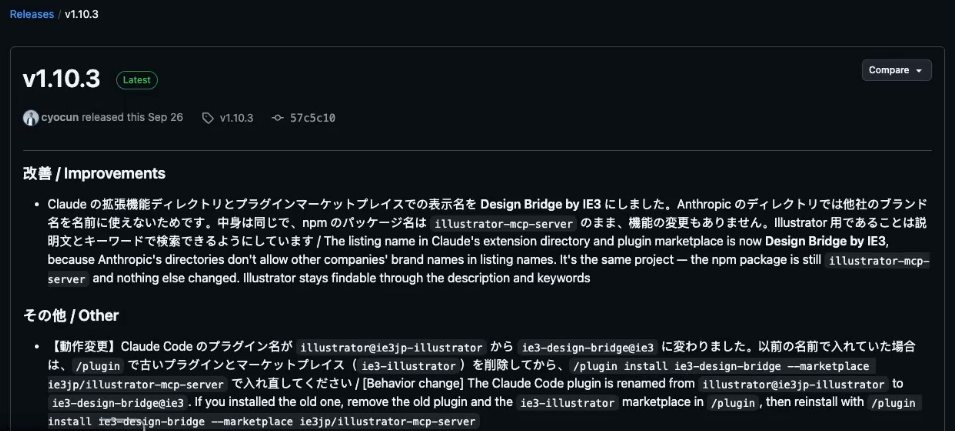
On the repository page, on the right, go to Releases and open the latest version (when I recorded the video it was v1.10.3). There you'll find the file:
illustrator-mcp-server.mcpbDownload it. That file is the extension you'll install in Claude Desktop.
Step 3 · Install it in Claude Desktop
- Open Claude Desktop and go to Settings › Extensions.
- Drag the
.mcpbfile into the Extensions window. - You'll see the Design Bridge by IE3 card: which tools it includes, the requirements (all met) and a notice that the developer information isn't verified by Anthropic (which is why it's worth checking the repo first, as in Step 1). Click Install.
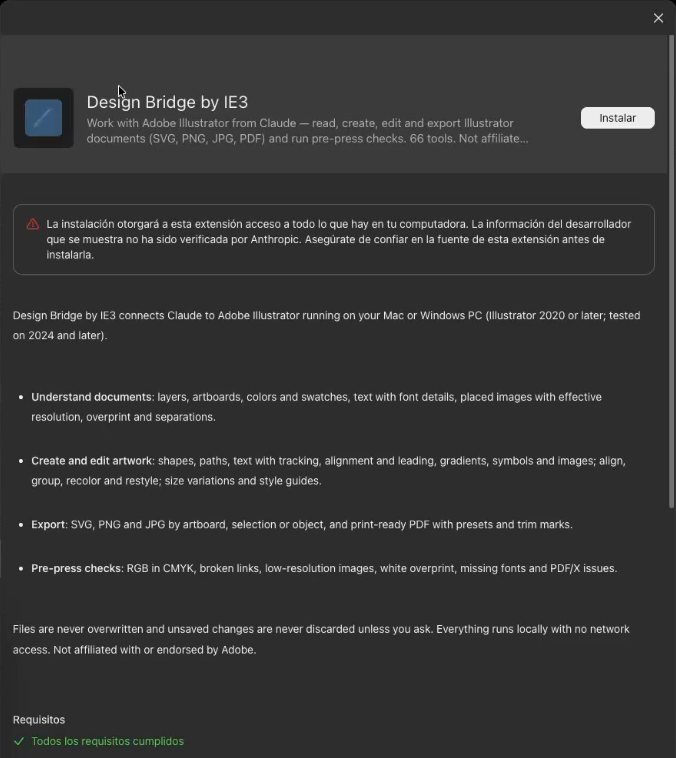
Once it shows as installed, you're done: if you open a new chat, you can already ask it to open Illustrator.
The first time, macOS will ask for automation permission. Accept it, or turn it on in System Settings › Privacy & Security › Automation.
The Terminal alternative (Claude Code)
If you work with Claude Code, the same connector is added with one command:
claude mcp add illustrator-mcp -- npx illustrator-mcp-serverAnd you check it with:
claude mcp listIt should show illustrator-mcp with “✓ Connected”. I installed it this way first, but in the video I went with Claude Desktop because it's easier to follow and doesn't depend on Terminal.
The first test
With the extension installed, open a new chat in Claude Desktop and ask for something simple:
Open Illustrator, create a new document in millimeters and draw a red 50 × 50 mm square centered on the artboard.
While I was talking to the camera, on the other monitor I watched Illustrator open, create the artboard and draw the square. It works.
Why it took control of the screen
But at one point the red border appeared around the screen: Claude had taken control of the desktop, something that didn't happen with Premiere and After Effects. So I asked it directly why, and it answered:
- “You're right, it wasn't necessary and it was my call.”
- The MCP connection did work in the background: with it, it created the document, drew the square and checked it without touching the screen.
- The problem was the units. The connector's tool for creating documents has no units option, so the document came out in points. To switch it to millimeters it had to go to File › Document Setup, and it did that by using the screen.
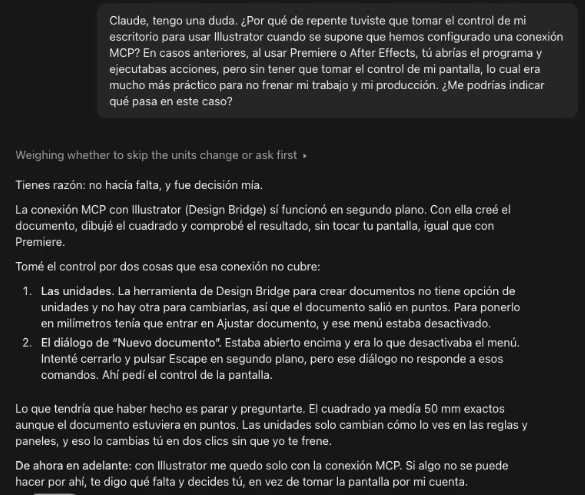
This matters with any agent: many times we hand it a task without knowing which path it will take to solve it. It got it done, but that's not the idea. The whole point of MCP is that it works behind the scenes while you keep using your computer.
The real test: a packaging box
You can make a red square yourself in two minutes, so I tried something real. I gave it one of my illustrations and asked:
I want to test the MCP's capabilities on their own: avoid using the screen or taking control of my monitor, because I need to work in parallel. I need a packaging box for some stickers I'm going to sell, based on this illustration. Standard dimensions, roughly 10 × 8 cm and 2 or 3 cm tall, in a standard packaging format and following the aesthetic of the illustration.
Its plan was to build the entire box using only the MCP connection, without touching my screen: a reverse tuck end box measuring 100 × 80 × 25 mm, with die line, scores, bleed and the artwork following the illustration.
I left it working and walked away. When I came back it wasn't using the computer: I could do something else while it made progress. It took about 12 minutes, including one minute it spent waiting for my approval.
The result
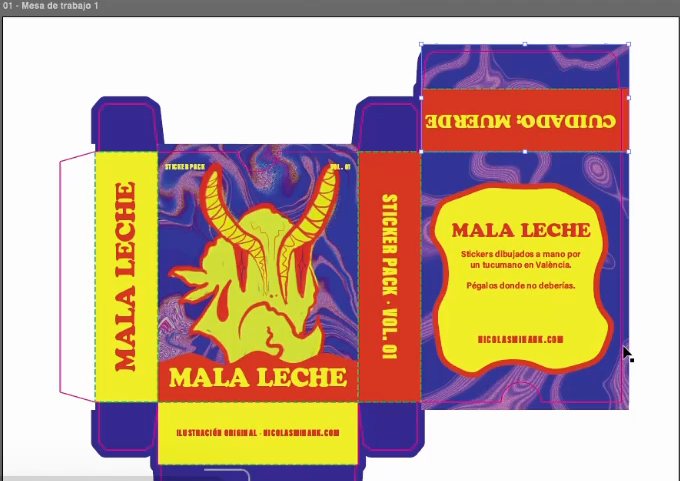
It gets the job done:
- Everything is dimensioned and in the unit I asked for, millimeters.
- It's an editable file, built in Illustrator, not an image.
- It built the die line and explains what each part is.
- It used my illustration as is, without changing it.
You'd have to send it to print to see what the printer says, but as a technical base it's very good.
What didn't go well
- It took control of the screen in the first test. It came down to the units: the connector can't create the document directly in millimeters. If it happens to you, explicitly ask it not to use the screen, as I did in the packaging test.
- It made decisions nobody asked for. It put the brand name “Mala Leche” on the box (“a play on the goat and a bad mood,” according to it). It made me laugh, but it's not ideal: the broader the prompt, the more it goes off on its own.
- One face of the box came out blank. It may be an inside face, but it's worth checking before printing.
- The .mcpb extension doesn't update itself. To update it, download the new version from Releases and install it again.
The tip: have it ask before deciding
The fix for “Mala Leche” is in the prompt. Add a line like this:
Before executing, ask me about any doubt or decision you want to make, and we'll make it together.
That way the design stays yours and the AI does the heavy technical work: measurements, die line, bleed and a print-ready file.
Shortcut: hand this article to your agent
Every video on the channel has its own article. If you want, copy this page's link and give it to Claude Code, or to Claude with access to your computer: it can read the steps and install the connector for you. Still, I'd recommend doing it by hand at least once, so you understand what's going on.
Coming up in the series: Blender, CapCut and more tools connected to Claude.
Resources
- illustrator-mcp-server connector (Design Bridge by IE3, GitHub): https://github.com/ie3jp/illustrator-mcp-server
- Node.js: https://nodejs.org
- Claude Desktop: https://claude.ai/download
- The video for this tutorial (in Spanish): Conecto Claude a Illustrator en 3 pasos
Frequently asked questions
Will Claude use my screen?
The MCP connection works in the background. In my first test it took control of the screen to switch the document to millimeters, because the connector’s tool for creating documents has no units option. If you don’t want that, explicitly ask it not to use the screen, as I did in the packaging test.
Which version of Illustrator do I need?
Illustrator 2024 or later, which is the verified version. From 2020 on it should work, but the connector warns you it hasn’t been tested. You also need Claude Desktop (or Claude Code) and Node.js 20 or later.
Can I install it from Terminal?
Yes, with Claude Code: claude mcp add illustrator-mcp -- npx illustrator-mcp-server. You check it with claude mcp list, which should show illustrator-mcp with “✓ Connected”.
How do I update it?
The .mcpb extension doesn’t update itself. To update it, download the new version from Releases and install it again.
Do I have to pay for the connector?
The connector is open source, under the MIT license. Which Illustrator or Claude plan is required I did not evaluate here.
What you just read, running in your team.
I set up Claude and its connectors with your creative or marketing team: video editing, ad variations, product pages and reports. You keep the workflows running and documented.
Rather have me build it for your brand? Start with a diagnosis: we look at your creatives, your store and your team, and I tell you where to begin.
Get a diagnosis for my brandRather a live hour? 1:1 consulting — €100 (in Spanish)